
- 01 Remove the Backcover
- 02 Press and Hold Boot Button
- 03 Device Reset Confirmation
- 04 Ready for Reprovisioning
- 05 Troubleshooting
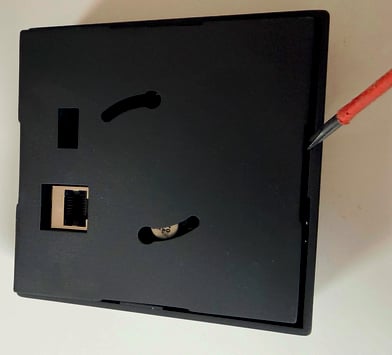
Remove the backcover
Locate the back cover on your OccuHub device. Gently, using a screwdriver or similar lift the cover to expose the internal components. Handle the device carefully to avoid damage to the sensor or internal circuitry. Ensure you're working on a clean, static-free surface for optimal safety during the reset procedure.
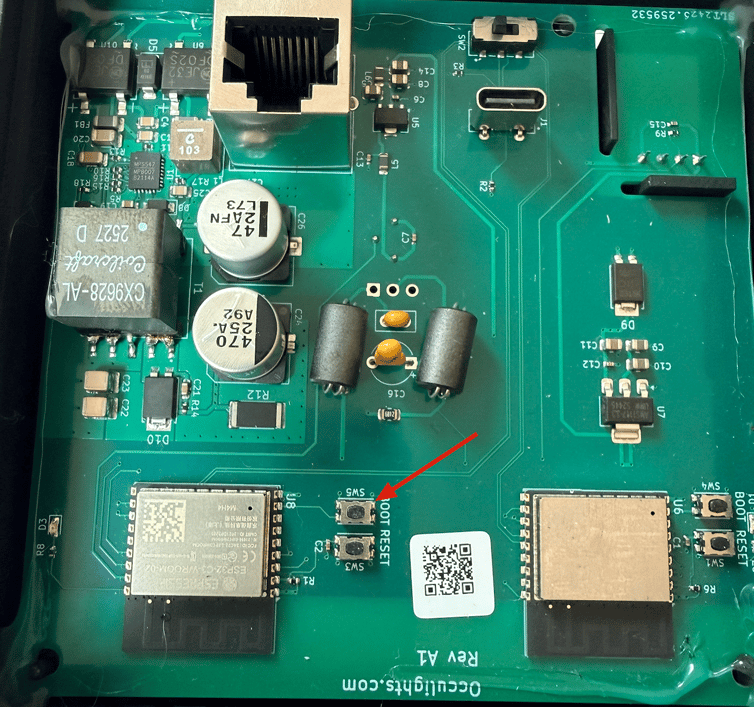
HOLD THE BOOT BUTTON FOR FIVE SECONDS.
Once the back cover is removed, locate the boot button on the device's internal board. Press and hold this button for a full 5 seconds to initiate the reset sequence. This action will clear the Offline Mode configuration and restore the OccuHub to its factory default state.
YOUR OCCUHUB RETURNS TO FACTORY STATE.
The OccuHub will now reset to its original factory state, removing all Offline Mode configurations and stored settings. This process happens automatically after the 5-second boot button press. The device clears its memory and prepares itself for a fresh setup. You'll know the reset is complete when the hub is broadcasting it's WIFI hotspot.
PROVISION YOUR DEVICE WITH OCCUSETUP.
With the reset complete, your OccuHub is ready to be reprovisioned and deployed back into your workspace. Replace the back cover and proceed with your standard setup workflow.
TROUBLESHOOTING TIPS FOR RESET ISSUES.
If you encounter any issues during the reset process, verify that the boot button was held for the complete 5-second duration. Confirm the device is receiving power through its PoE or USB-C connection.